
Register activities with AI
The Register with AI feature was designed to optimize the schedule configuration process, allowing batch import from files.
Important Prerequisite
To ensure automation effectiveness, make sure all physical locations (Auditoriums, Rooms) are previously registered in the "Addresses" menu. The AI will try to link activities to existing locations.
1. Accessing the Tool
On the "Activities" screen, click the "Register with AI" button located at the top corner.
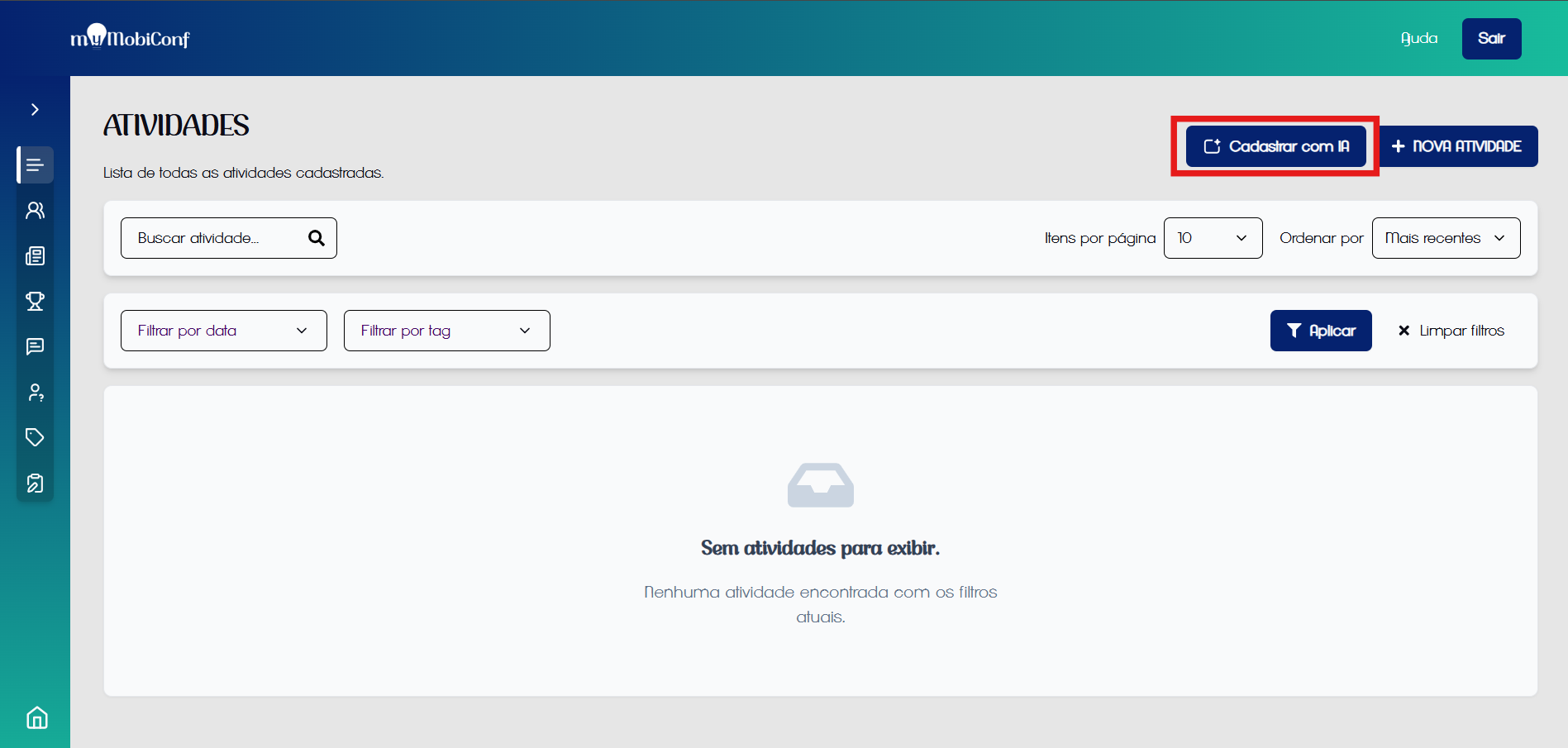
Button location on activities screen
2. File Upload
A window will open. You must upload the file containing the event schedule.
- Supported Formats: PDF (.pdf), Images (.jpg, .png), HTML, Spreadsheets (.xls, .xlsx).
- Recommendation: Using spreadsheets (.xls/.xlsx) offers the highest accuracy in data extraction.
3. Data Review
After processing, you will be redirected to a review table.
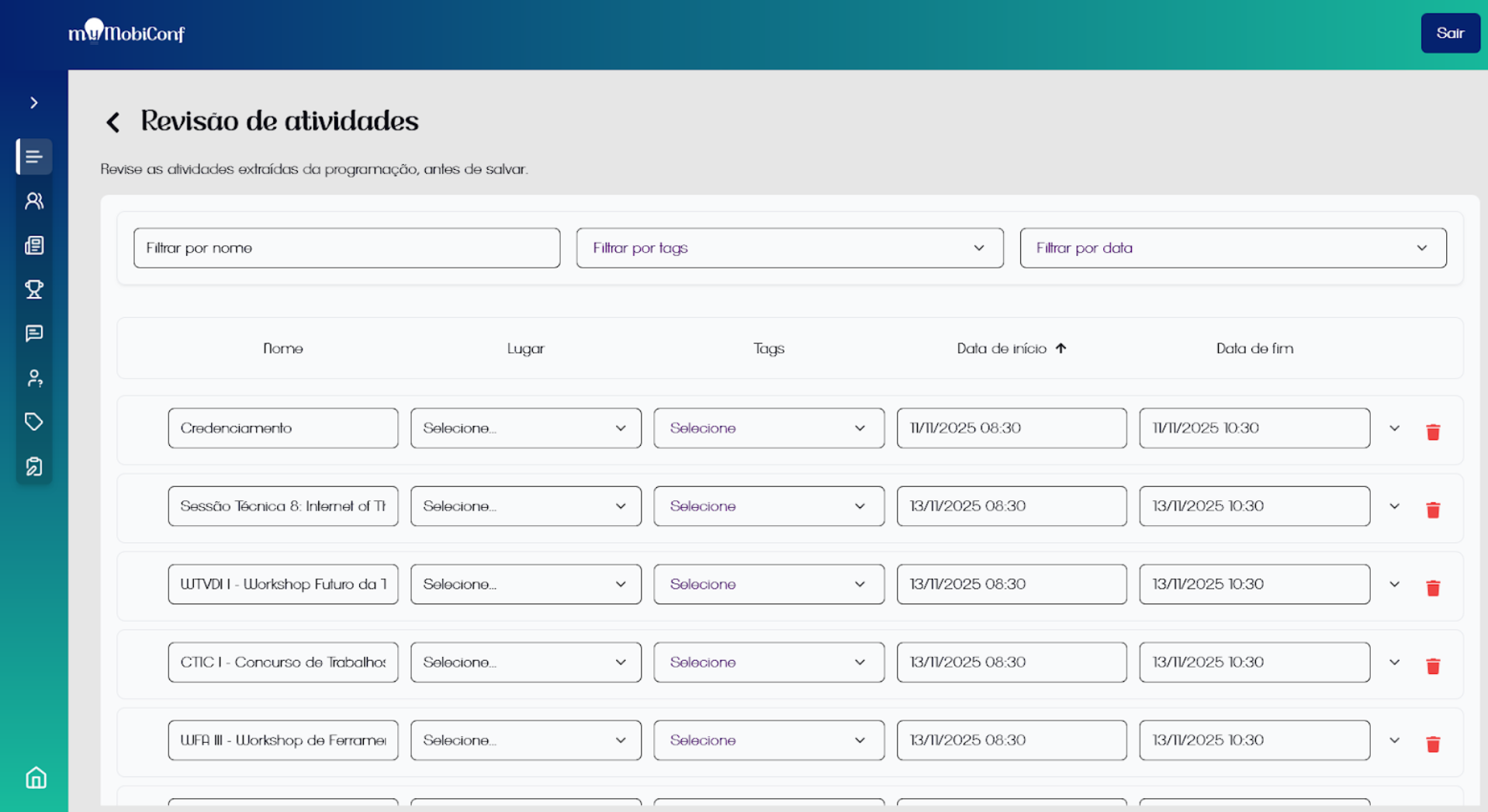
Check extracted data before saving
Check carefully:
- Required Fields: Activities with missing data will not be saved.
- Dates and Times: Confirm if the extraction was correct.
You can edit the description and advanced settings by clicking the gear button on each row.
4. Conclusion
Once everything is correct, click "Save all activities" to complete the registration.
After the activity is registered, it will be possible to view the schedule on the activities screen.
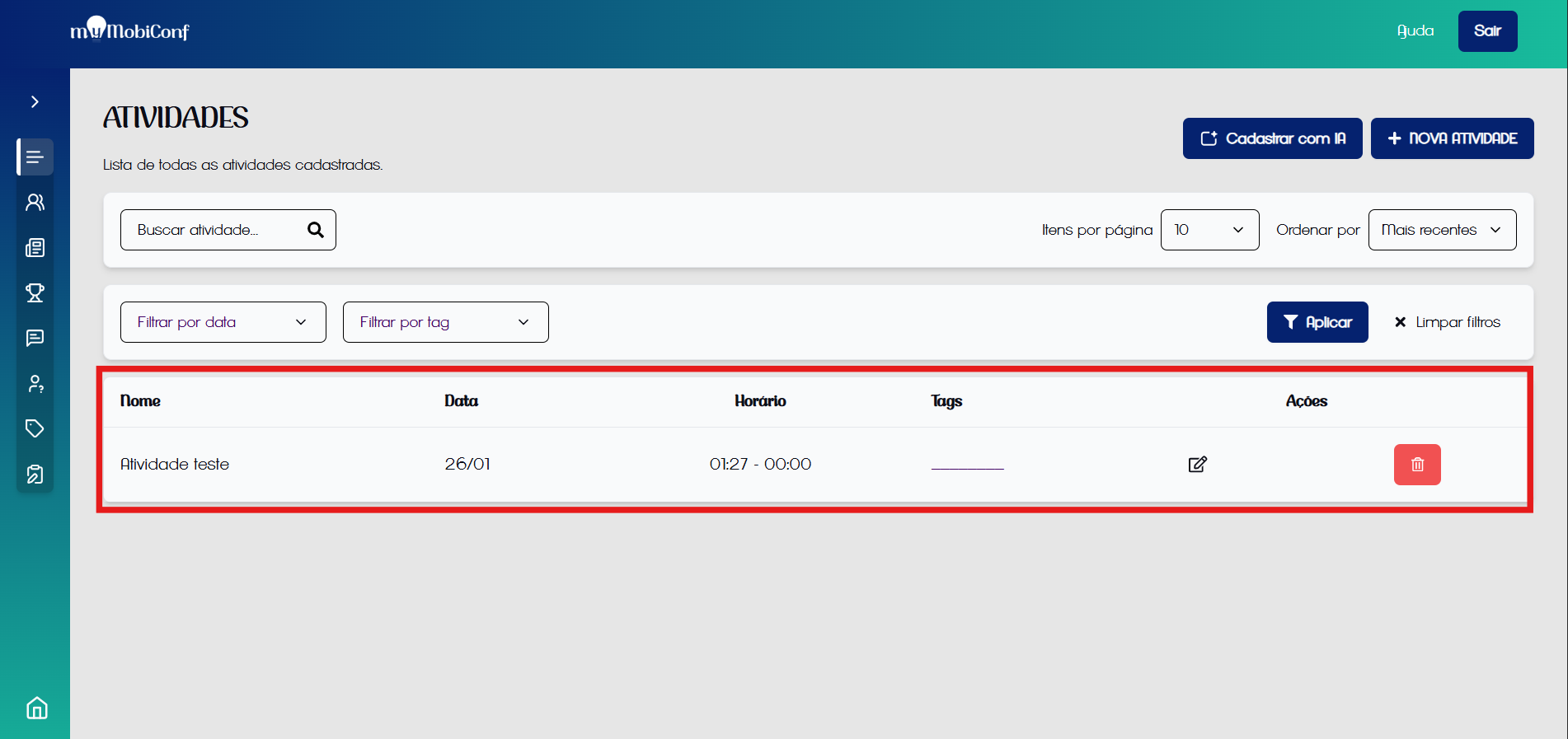
Activity registered